JDownloader 2 VPN Setup Guide
Here you will find the answer on how to VPN beim JDownloader 2 nutzen and you can set it. Please read to the end to find out what you need to consider.
You can use JDownloader 2 here download.
What is a VPN?
When you are online, you leave traces, as your IP address is recorded in the log files of the servers you visit. This allows it to be tracked which websites you have visited, which data you have downloaded, and which videos you have streamed.
For most internet users, the provider assigns a dynamic IP address. This changes with every connection. However, such an IP address only offers limited protection against surveillance.
However, if you want to surf the internet anonymously, you should go online via a VPN connection. This is a Software, which establishes contact with a server of the VPN provider via a connection referred to as a tunnel, which is encrypted.
What is JDownloader 2?
JDwonloader2 automatically downloads your data from the internet, and the archives are then emptied on your end. This is a free, open-source software that offers you numerous functions to influence the download process. This gives you the option to limit its speed (if, for example, you have a poor internet connection or need the bandwidth for other activities) or to pause it.
You can also run multiple downloads simultaneously with it and automatically empty your existing archives at the same time. The JDownloader 2 technically controls the connection and the connected router, if it belongs to the area supported by the open-source software.
How to set up a VPN in JDownloader 2 and what needs to be considered?
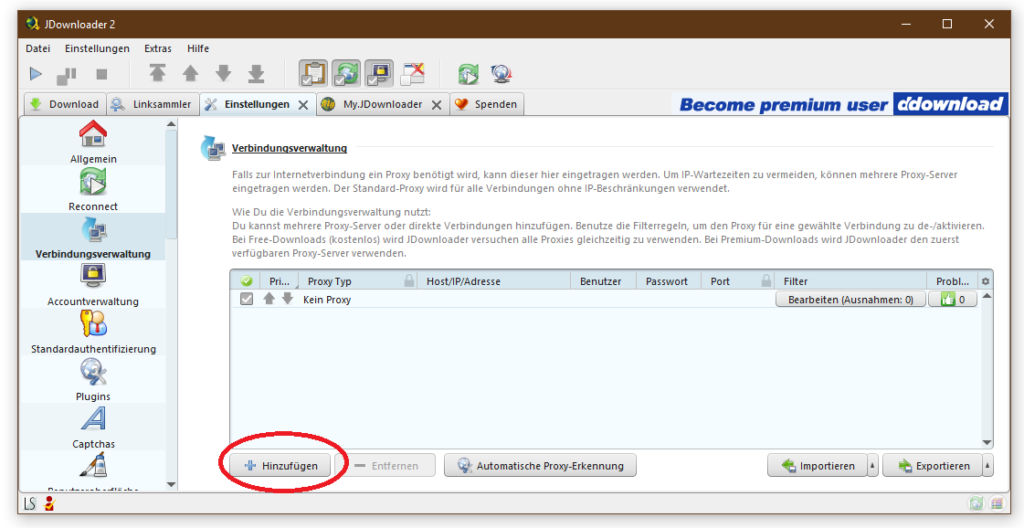
In JDownloader 2, there is the „Settings“ tab, and you need to switch to it. On the left side of the menu in JDownloader 2, you need to select the „Basics“ and„Download & Connections“and„Internet & Network“to be unfolded.
Here you need to place a checkmark at„Proxy use and restart required.
Likewise, you must enter the proxy's details under „Host/IP“ and „Port“. You can find a list of proxy servers on, for example, „hidemyass.com“or on „xroxy.com“.
Afterward, you need to restart the JDownloader. To do this, click on the “File„ section in the top left corner and select the “Restart„ option. You must then activate the restart by clicking “OK,„ and the VPN will be set up.







Comments
St. Paul. 30. October 2022 at 07:54
Hello,
The proxy is explained. That has nothing to do with a VPN. Sorry, wrong topic.
Greetings
David 31. October 2022 at 16:23
Hello, I have the Avira Phantom VPN program and I want the secure connection to work in JDownloader. How do I do that? And how do I set it up so that downloads also work in JDownloader when the VPN is activated?